Recycle Management Employee Updates
How employees enroll in optional SMS / Cómo inscribirse en SMS opcionales
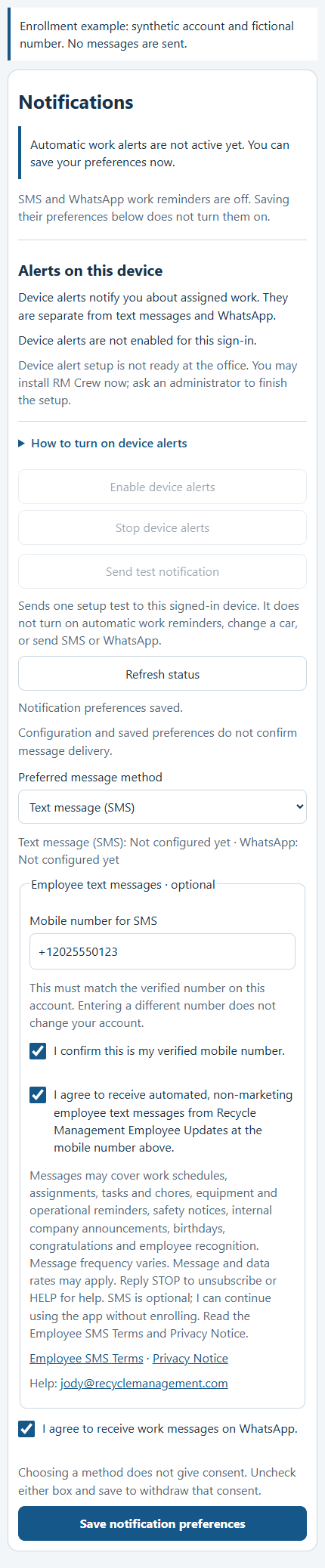
This page explains the employee-only enrollment flow. It does not collect a phone number or enroll anyone. Screenshots below show the actual app controls using a synthetic review account and a fictional number, not employee data. No message delivery or provider approval is claimed.
English — Actual enrollment steps
- An administrator approves the employee account. The employee follows their account setup link, enters the account's phone number and verifies it before choosing a password. Account setup and phone verification do not grant SMS program consent.
- After signing in to Operations, open your initials, Notification Settings, then SMS & work notifications. In My Account, choose Set up work notifications. Office-only employees do not need Crew access. Employees who use RM Crew can also open their initials and Notifications. Browser alerts are separate from SMS and WhatsApp. The Mobile number for SMS input is filled with the account's verified number. A different entered number cannot change the account or enroll another number.
- The employee confirms the verified mobile number, reads the Employee Updates disclosure, selects the separate optional SMS checkbox and chooses Save notification preferences. Both boxes start unchecked for a new enrollment or earlier rail-work consent. WhatsApp consent is separate.
- The app validates the current account, verified number and consent revision, then stores the employee, number, phone confirmation, disclosure version/hash, language, time and choice. The saved state confirms enrollment only; it does not activate SMS delivery or confirm a sent text.
- The employee can use the app without SMS. To withdraw, uncheck SMS and save; phone confirmation is not required for withdrawal. Reply STOP to unsubscribe from messages or HELP for help. Support: jody@recyclemanagement.com.
Messages may cover work schedules, assignments, tasks and chores, equipment and operational reminders, safety notices, internal company announcements, birthdays, congratulations and employee recognition. This is a non-marketing employee program. Message frequency varies. Message and data rates may apply.
Read the Employee SMS Terms and Privacy Notice. Earlier rail-work consent is preserved but does not enroll employees in this broader program.
Before enrollment

After saving
Español — Pasos reales de inscripción
Esta página explica el proceso exclusivo para empleados. No recopila números ni inscribe a nadie. Las imágenes muestran los controles reales con una cuenta de prueba y un número ficticio, sin datos de empleados.
- Un administrador aprueba la cuenta. El empleado sigue el enlace de configuración de su cuenta, introduce el teléfono de la cuenta y lo verifica antes de elegir una contraseña. Configurar la cuenta y verificar el teléfono no otorgan consentimiento al programa de SMS.
- Después de iniciar sesión en Operations, abra sus iniciales, Notification Settings (configuración de notificaciones) y SMS & work notifications (SMS y notificaciones de trabajo). En Mi cuenta, seleccione Configurar notificaciones de trabajo. El personal que solo usa Operations no necesita acceso a Crew. Quienes usan RM Crew también pueden abrir sus iniciales y Notificaciones. Las alertas del navegador son independientes de SMS y WhatsApp. El campo Número móvil para SMS muestra el número verificado de la cuenta. Introducir otro número no cambia la cuenta ni inscribe otro teléfono.
- Confirma el número verificado, lee el aviso de Employee Updates, marca la casilla opcional y separada de SMS y selecciona Guardar preferencias de notificación. Ambas casillas comienzan desmarcadas para una inscripción nueva o un consentimiento ferroviario anterior. WhatsApp tiene consentimiento independiente.
- La aplicación valida la cuenta actual, el número verificado y la revisión del consentimiento; luego registra empleado, número, confirmación del teléfono, versión y huella del aviso, idioma, fecha y hora y decisión. La confirmación guardada no activa los SMS ni demuestra el envío de un mensaje.
- Puede usar la aplicación sin SMS. Para retirar el consentimiento, desmarque SMS y guarde; no necesita confirmar el teléfono para retirarlo. Responda STOP para cancelar mensajes o HELP para pedir ayuda. Contacto: jody@recyclemanagement.com.
Los mensajes pueden incluir horarios, asignaciones, tareas y labores, recordatorios sobre equipos y operaciones, avisos de seguridad, anuncios internos, cumpleaños, felicitaciones y reconocimiento al personal. Es un programa no comercial para empleados. La frecuencia varía. Pueden aplicarse tarifas de mensajes y datos.
Lea los Términos de SMS para el personal y el Aviso de privacidad. El consentimiento ferroviario anterior se conserva, pero no lo inscribe en este programa más amplio.
Antes de inscribirse

Después de guardar
